Video Editor AI Keeps Facts Stable Across Revisions
An educational clip can become more attractive and less accurate in the same edit. A prompt changes the classroom background, but a date on the whiteboard shifts. A diagram gains motion, but an arrow now points the wrong way. The right test for video editor AI is whether a bounded visual change leaves the lesson’s facts untouched.
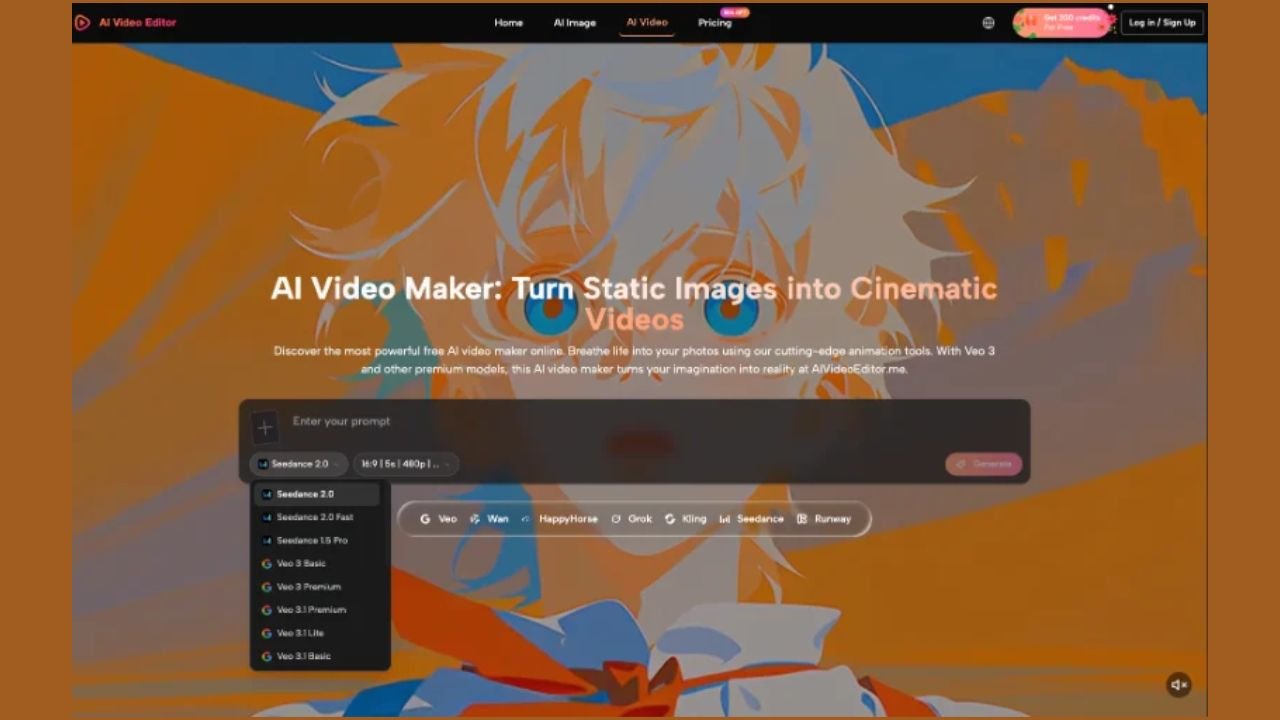
AIVideoEditor.me lets users upload footage, describe edits in plain English, and generate a new version. Its guidance recommends stating both what should change and what should stay consistent. For teachers and student creators, that second half is the control surface. The prompt needs a fact lock before it needs a style.
A Visual Edit Can Quietly Rewrite The Lesson
Factual drift does not always arrive as a dramatic hallucination. It can be a missing minus sign, a swapped color key, a cropped label, or a subtitle that no longer matches the spoken sentence. Because the new clip looks polished, reviewers may watch for style and miss the changed claim.
Treat On Screen Text As Source Material
List every visible fact before uploading the video: names, dates, quantities, units, formula symbols, map labels, and diagram keys. Capture a still of each frame where those facts appear. The stills become the comparison set after generation.
Do the same for narration. Keep the approved transcript beside the clip, even when the requested edit concerns only color or background mood. A generated version can alter timing or visual emphasis in ways that make a spoken statement point to the wrong object.
Define The Change As One Bounded Job
Good requests are narrow: brighten the room behind the presenter, soften the background while preserving the slide, or make the demonstration table easier to see. Requests such as improve the whole lesson invite the system to solve several problems the reviewer has not defined.
A bounded job also creates a clear rejection rule. If the room brightens but the slide text changes, the output fails. The visual improvement cannot compensate for a factual loss.
Consider a short chemistry demonstration. The request is to make the bench easier to see. The locked material includes the reagent label, the volume printed on the cylinder, the order of the pours, and the warning caption. A brighter, cleaner version that changes 25 mL to 20 mL is not nearly correct. It teaches a different procedure. Writing those four locks before the edit turns a vague quality check into a factual comparison.
Lock Claims Before Writing The Edit Prompt
Build a short fact-lock sheet with three columns: the item, where it appears, and what must remain exact. This is not a production script. It is a contract for the parts of the clip the edit is not allowed to reinterpret.
| Locked item | Location | Exact review |
| Equation and units | Slide at 00:18 | Compare every sign, number, and unit |
| Map color key | Lower right at 00:31 | Match color-to-category assignment |
| Quoted phrase | Caption at 00:46 | Match approved transcript and punctuation |
The timestamps make review faster. They also prevent a common shortcut: checking the opening and assuming the rest of the clip is safe.
Add a reviewer column when the clip contains more than one subject area. A teacher may own the explanation, while a lab supervisor checks quantities and safety text. Give each person only the frames they are qualified to approve. One general good response should not silently clear a specialized claim.
Write Change And Keep Instructions Separately
The prompt should name the change first, then the locks. For example: make the classroom background warmer; keep the presenter, slide text, equation, pointer position, narration timing, and camera movement unchanged. The dedicated editing page says prompts can guide mood, background, captions, motion, and visual details. Naming the locked categories tells the tool where not to improvise.
Using an AI video editor does not make the instruction deterministic. It makes the expectation explicit and gives the reviewer a basis for rejecting the result.
Use The Cleanest Source And Preserve A Copy
Upload the clearest available source clip. Keep the original untouched in the project folder and label the generated version as a draft. If the source already contains soft text or compression artifacts, note them before the edit so they are not mistaken for new damage.

Audit The New Version In Three Passes
Generate the edited result, then separate the review into transcript, frame facts, and teaching meaning. Each pass answers a different question. Watching once for everything encourages the eye to follow motion and overlook small text.
Pass One Matches Narration And Captions
Play the original and new clip from the same start point. Compare the approved transcript with visible captions and listen for any timing shift that changes which diagram or object is on screen during a statement. If captions are part of the requested change, proofread them as new copy rather than trusting the generation.
Pass Two Freezes Every Locked Frame
Jump to each timestamp in the fact-lock sheet. Freeze the frame and compare the equation, unit, label, key, or date with the source still. Check adjacent frames too. A label may look correct at rest but warp as the camera or subject moves.
Pass Three Asks What A Student Learns
Show the edited clip to someone who has not read the prompt. Ask them to explain the process or relationship shown. If the new background, crop, or motion draws attention to the wrong step, the edit can distort meaning without changing a single word.
When a failure appears, make the smallest correction possible. If one caption is wrong, do not request a new visual style at the same time. Save the failed version and note the exact timestamp, expected value, and observed value. After regeneration, repeat all three passes because a local request can still affect nearby frames or timing.
Finish with an export check in the learning platform or document where the clip will appear. Compression can soften small equations and platform controls can cover lower captions. A file that passed in the editor may need larger text or a safer crop before students see it.
AIVideoEditor.me explicitly frames prompt edits as new versions rather than guaranteed frame-perfect changes. That makes this three-pass audit a required part of the workflow, not a pessimistic extra.
READ MORE
Submit The Clip With Its Fact Lock
AIVideoEditor fits educational editors who already have an approved lesson and want to test a specific visual improvement. It is not a research tool, a citation system, or a substitute for subject-matter review.
Keep the original, prompt, fact-lock sheet, rejected notes, and accepted clip together. The useful result is not merely a warmer classroom or cleaner background. It is a visual revision that leaves every number, label, relationship, and spoken claim where it belongs.
That record also lets another teacher verify the decision.