
Tips to Expertly and Happily Play Clash Royale on PC
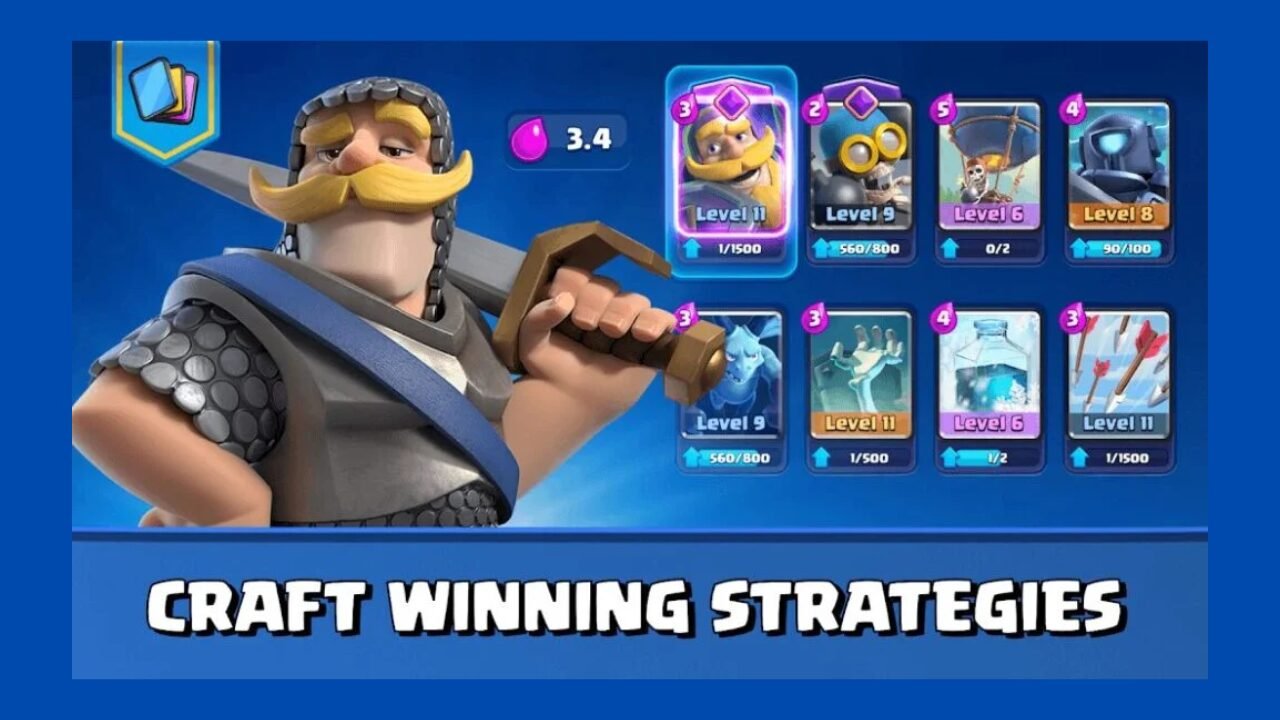
Have you ever lost a match because your thumb slipped or a notification blocked your view of an incoming Goblin Barrel? If yes, you have likely wondered if there is a better way. We know that Clash Royale was born for mobile. But…playing it on a PC is not just a “larger screen” experience; it is a competitive upgrade.
So…what if you transition to a desktop? You will gain precision, stability, and tactical clarity that a 6-inch phone screen can’t provide.
In this guide, we will show you how you can move your battles to the big screen. These are the best ways to dominate the arena with expert-level efficiency to play Clash Royale on PC.
Why the Desktop Arena Beats Mobile?
The jump from a handheld device to a PC changes the fundamental “feel” of the game. Your fingers often cover the very units you are trying to track on mobile. On the flip side, you have a 100% unobstructed view of the battlefield on PC.
- Precision Over Tapping: Dragging and dropping cards with a mouse is “smooth as butter” compared to tapping. You can place a building or a spell on a specific tile. How? Definitely, with pixel-perfect accuracy!
- Zero Battery Anxiety: You never have to worry about your phone dying mid-overtime. Or, don’t stress out about the device overheating and throttling your frame rate.
- Multitasking Power: You can have Discord or a strategy guide open on a second monitor. It allows you to chat with your clan or check counter-decks without ever leaving the game.
Setting Up Your PC Battle Station
Supercell hasn’t released a native Windows version. So, the pros use Android Emulators like MuMuPlayer or BlueStacks. These programs act as a bridge. They create a virtual Android phone right on your desktop.
- Installation: Download a reputable emulator. Then, log in using your Google account. I personally use MuMuPlayer because it has no ads, which lets me focus on the game without distractions.
- Sync Your Progress: Open the Play Store within the emulator and download Clash Royale. Now, log in with your Supercell ID. This ensures all your cards, trophies, and King Tower progress carry over instantly.
- The “VT” Secret: Ensure Virtualization Technology (VT) is enabled in your computer’s BIOS for the smoothest experience. This is the “magic switch” that helps the emulator use your CPU’s full power. It also eliminates lag.
Expert Controls: Mouse and Keyboard Mastery
The real “pro” advantage on PCs comes from Key Mapping. Instead of just clicking, you can assign keyboard shortcuts to your card slots.
- Number Keys (1-4): Map these to your card slots. This helps you to select a card with your left hand. On the flip side, your right hand stays on the mouse for placement. This split-second speed shows the difference between a successful “Log” prediction and losing a tower.
- Mouse Wheel: Some players use the scroll wheel to zoom in or out, providing a clearer view of troop health bars and lane pressure.
- The “Double-Lane” Advantage: On PC, the larger display makes it easier to manage “split pushes.” You can track a Lava Hound in the right lane while precisely defending a Royal Ghost in the left without feeling “clustered.”
Strategy Tips for the PC Power User
Playing on PC allows you to focus more on the “math” and “rhythm” of the game. Here is how to play smarter:
- Elixir Management is Key
Don’t just throw cards at the bridge. Experts suggest waiting until your bar hits 9 units before making a move. This ensures you have enough resources to react if your opponent drops a surprise, Mega Knight. The elixir bar is larger and easier to track in your peripheral vision on PC.
- Learn the “Sweet Spot” for Defense
Placement is everything. When defending against ground units, drop your defensive troops in the middle of the arena, a few tiles back from the river. This pulls enemy units toward the center, allowing both of your Princess Towers to shoot them at once. The precision of a mouse makes it much easier to hit this exact tile than on a touchscreen.
- Optimize Performance
Go into the emulator settings and set the performance mode to “High” if you are on a lower-end PC. Set your resolution to 1280×720 if the game feels choppy. This will reduce strain on your GPU while keeping gameplay fluid and responsive.
READ MORE
Level Up Your Game!
Playing on a Clash Royale PC isn’t just about the hardware. It is about the mindset. You ought to use the larger screen to analyze your opponent’s patterns. Did they use their Arrows on your Minions? Now you know their “cycle” is open for a Goblin Barrel.
Also, combine the precision of a mouse with the strategic depth of Clash Royale. In this way, you will find yourself climbing the ladder faster. More importantly, you will enjoy the game without the frustrations of mobile limitations.